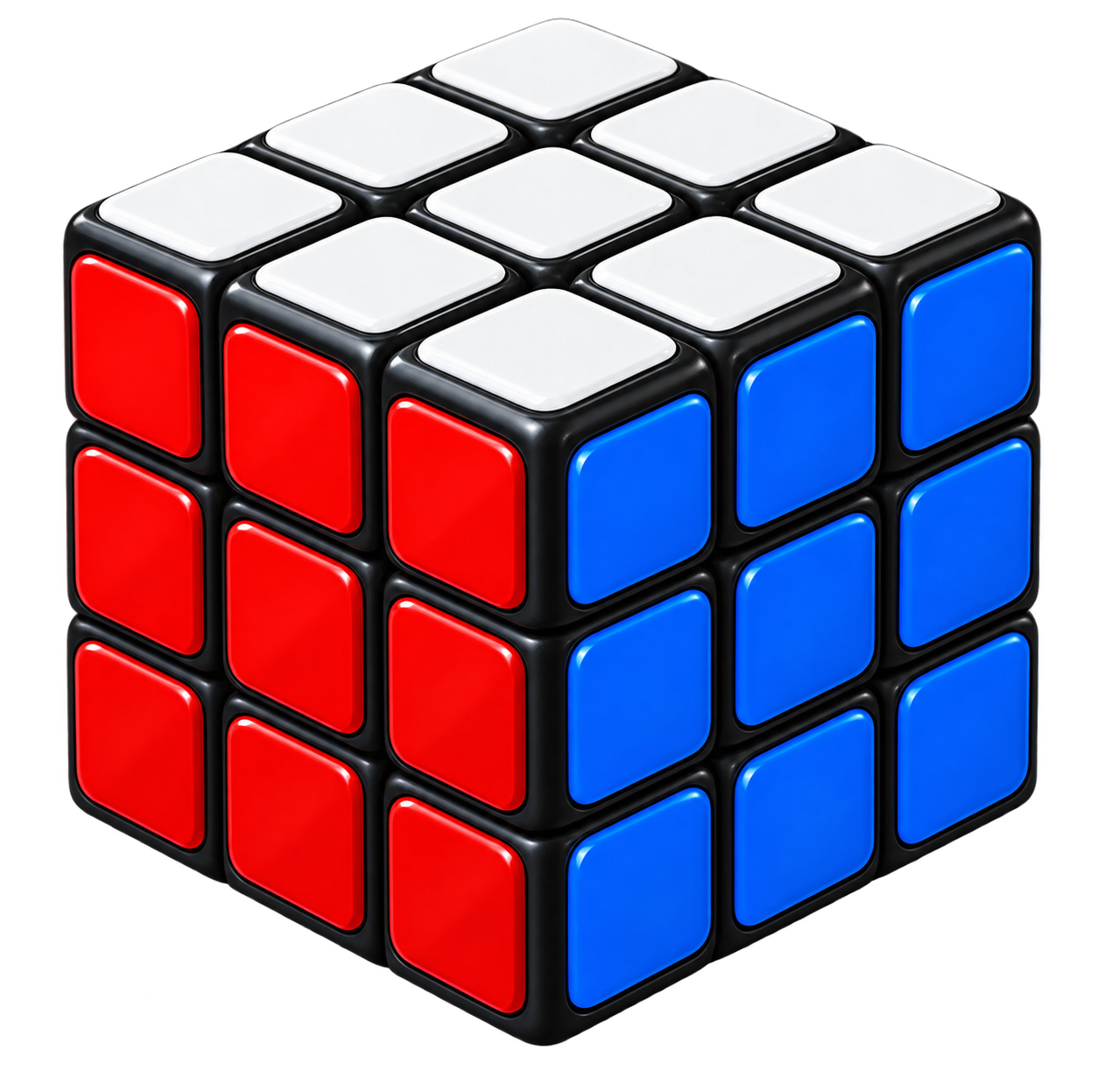
Rubik's Cube Solver
Enter your cube colours and get a real solution for your 3×3 Rubik's Cube with clear move-by-move instructions.
- Hold your Rubik's Cube in front of you.
- Match the centre colours on the virtual cube.
- Choose a colour from the palette below.
- Click the matching stickers on the virtual cube.
- Rotate the cube and repeat for all six faces.
- Click Check Cube, then Solve Cube.
🎉 Solution Found!
How to use the Rubik’s Cube Solver
- Hold your physical 3×3 cube and match the centre colours on the virtual cube (centres identify each face and stay locked).
- Choose a colour from the palette, then click the matching stickers on the virtual cube. Rotate the on-screen cube and repeat for all six faces.
- Check the colour counts (nine of each colour) and click Check Cube.
- When the cube is valid, click Solve Cube for a move-by-move solution.
- Follow the moves on your physical cube. Use Previous / Play / Pause / Next and the speed controls (0.5×–2×) if you want the animation stepped. Reset clears the scramble; Reset View only resets the camera.
If you enjoy what we do, consider supporting us. Every little bit means the world! Support Catpool on Ko-fi
What it is for
The solver turns a scrambled 3×3 colour layout into a sequence of moves you can follow. It is for learning, unsticking a messy cube, or checking a scramble you entered by hand. It is not a competition timer, not a CFOP trainer with algorithms to memorise, and not a solver for 2×2, 4×4 or other sizes.
If you want a break from solving and just need something to click, the Games hub has lighter toys in the same Catpool UI. Other browser utilities live under Developer and Create.
Entering colours accurately
Centres are fixed on a real cube: they tell you which colour belongs on which face. Drag the virtual cube to rotate it so you can paint each face while holding the physical cube the same way. Wrong stickers are the usual reason a solve fails, especially mixing up adjacent edge colours or swapping two corners in the colouring you typed.
Move notation on the solution uses the usual face turns: R = Right, L = Left, U = Up, D = Down, F = Front, B = Back. A prime (′) means anti-clockwise. A 2 means turn that face twice.
Why it runs in your browser
The solver runs locally on your device. No account is required and your cube state is not stored as a cloud puzzle history. Close the tab and the scramble is gone.
Tips
- Paint centres first so every face has the right identity before you fill edges and corners.
- Use Check Cube before Solve: invalid colourings waste time.
- Slow the playback to 0.5× when you are following along on a physical cube for the first time.
- If the cube was taken apart and rebuilt, it may be in an impossible state; reassemble carefully or start from a solved cube and scramble again.
Common questions
It says the cube is invalid
Real cubes have fixed centre colours and even permutation constraints. If two corners are swapped or a single edge is flipped in the colouring you entered, the tool cannot produce a legal solve. Recheck the stickers against the cube in your hands.
Are the moves standard notation?
Yes. Moves use the usual face turns (R, U, F and so on) with primes for anti-clockwise and 2 for a half turn. Pause on any step and match it to the face shown in the animation.
Can it solve bigger cubes?
This page targets the classic 3×3. Larger cubes need different solvers.
Do I need an account?
No. Enter colours, solve, leave. Nothing is saved on Catpool.
Why can’t I recolour the centres?
Centre stickers identify each face on a standard 3×3. They stay locked so the model matches a real cube.
Can I replay the solution?
Yes. Use Previous, Play, Pause, Next and the speed buttons after a solution is found.